Adobe Photoshop Eraser Tutorial
Eraser Tool In Adobe Photo Shop
Photoshop's eraser tool a very simple and general tool. In Photoshop eraser tool located in tool box with three variations: Eraser, Background Eraser and Magic Eraser. in this tutorials we discuses the function of eraser and magic erase tool.
The simple eraser tool is used for erasing the contents of any image. for this purpose we select the erase tool form tool box and drag the mouse holding left button. the every thing in range of the eraser tool will be deleted . where magic eraser tool erases all colors within a set tolerance. This is essentially the same as using the magic wand and hitting Delete. Using this tool you don't need to drag just click once on color range which you want to delete.
Hare we are going to show the some more function of eraser tool.
open two layers with two images. make shore both images are layer.
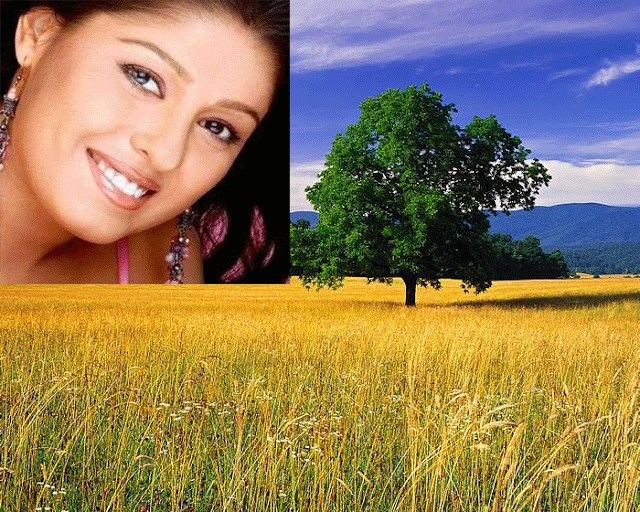
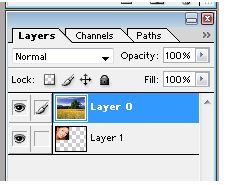
Now send the image of girls behind the 2nd image. for this purpose drag the layer1 one below the layer0.
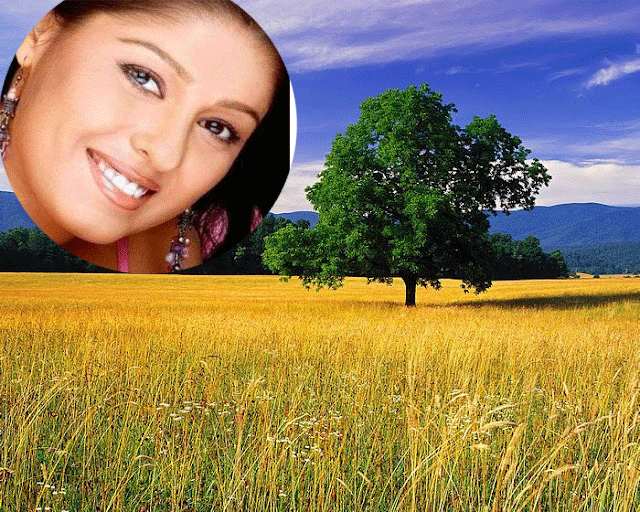
Now select eraser tool . adjust the size about 300px.
Now click on the layer0 at that aria where the 2nd layer is behind. The content of that place where you click in the circle of 300px will be deleted.
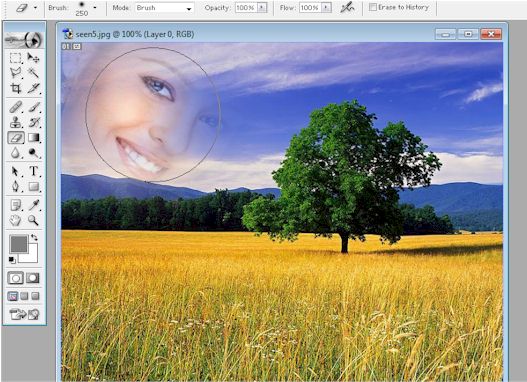
Now make some changes with the brush shape.
select he brush with faded edges. You can also press SHIFT+ Bracket keys to faded the brush edges.
Now again lick on the layer0 at that aria where the 2nd layer is behind. The content of that place where you click in the circle of 300px will be deleted. but this time you can see that both image looks mix to gather. as shown in the image below:
Change Hair Color Using A Fill Layer in Adobe Photoshop
Change the Background Using Extract Filter
Background Eraser
Changing The Color of Hair in Adobe Photoshop
Slice Tool in Adobe Photoshop
Unsharp Mask Filter in Adobe Photoshop
Image Sharpening In Adobe Photoshop
Saving Images for the Web in Adobe Photoshop
Create Patterns In Adobe Photoshp
Create a Custom Brush In Adobe Photoshop
Adobe Photoshop Patch Tool
How to Create a Transparent Gradient in Photoshop
Changing The Color Of Eyes In Adobe Photoshop
Create an Action in Adobe Photoshop
Create Custom Patterns in Photoshop
How we Blend Photos In Adobe Photo Shop
Set shadow, mid tone, and highlight
Applying Filter Effects in Adobe Photo Shop
Eraser Tool In Adobe Photo Shop
Removing scratch from image in Photoshop
Use of Lasso Tools In Photo Shop
Delete The Background With Magic wend tool
How to Group Layers in Adobe Photoshop
Restoring Old Photographs In Adobe Photo Shop
Removing People or Objects In Adobe Photo Shop
Converting an Image to Black and White In Adobe Photoshop
Create a Spectacular Style Text Effect in Photoshop
Image size, resolution, and mode