MS Excel Tutorial About Fill
Fill In Excel
Microsoft Excel give the facility to repeat information in many cells throughout a worksheet.
Fill Cells Automatically
The following process show the Automatically filling. In this example we fill the The SNO from 1 to 10 in Column:

-
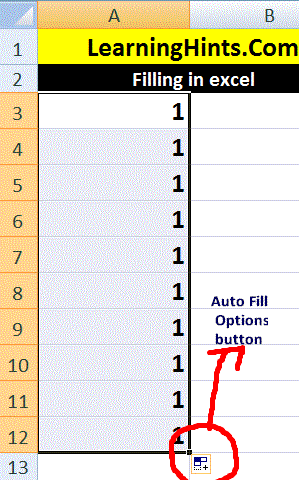
Select any cell where you want to write the first Number. In my example A3 in above image.
-
Type 1 in cell A3.
-
Now click and hold Fill Handle ( black square in the lower-right corner of the Cell which is circle with red color in above image This small black square is called the fill handle).
-
Now Drag the fill handle Downwards up to 10 cell. Note that the Auto Fill Options button appears.
-
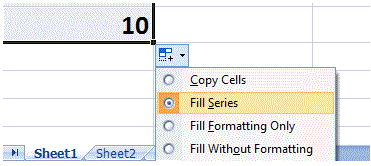
Click the Auto Fill Options button. The Auto Fill Options menu appears.
-
Choose the Fill Series radio button. The cells fill as a series from 1 to 10.
PMT() Financial Functions
Calculate the Sum of a Range Using AutoSum function
User Define Function (UDF) In Excel
Macros In Excel
Relative and Absolute Cell Reference in MS Excel
Page Setting and printing In MS Excel
Fill In Excel
How we use The Functions in MS Excel
How we Write Excel Formulas
Components of Excel 2007 Environment
Rounding The Numbers MS Excel
SUMIF FUNCTION In MS EXCEL
COUNTIF Function In MS Excel
COUNTBLANK Function In MS Excel
VLOOKUP Function In MS Excel
Pivot Table In MS Excel
Consolidation In MS Excel
Remove Duplicate Value In MS Excel
Convert Excel Data in to a Table